
Interface Continued: Grasshopper for Beginners (4)
In this fourth episode of Grasshopper for Beginners, the explanation of the graphical user interface continued. We call the data flow diagrams definitions. GH definitions are rendered on a large blank screen area called canvas. We can zoom in and out (zoom) the canvas with the middle mouse wheel. Or pan sideways by holding down the right mouse button. Tabs and panels are menus where all the components of the GH are grouped and placed. Left-clicking on the tabs displays the panels they contain. For example, under the Params tab are the Geometry, Primitive, Input, and Util panels. Thus, left-clicking on the names of the panels displays the components they contain. When we wait for a while with the mouse cursor over the components, we can see the component’s name and a short description.
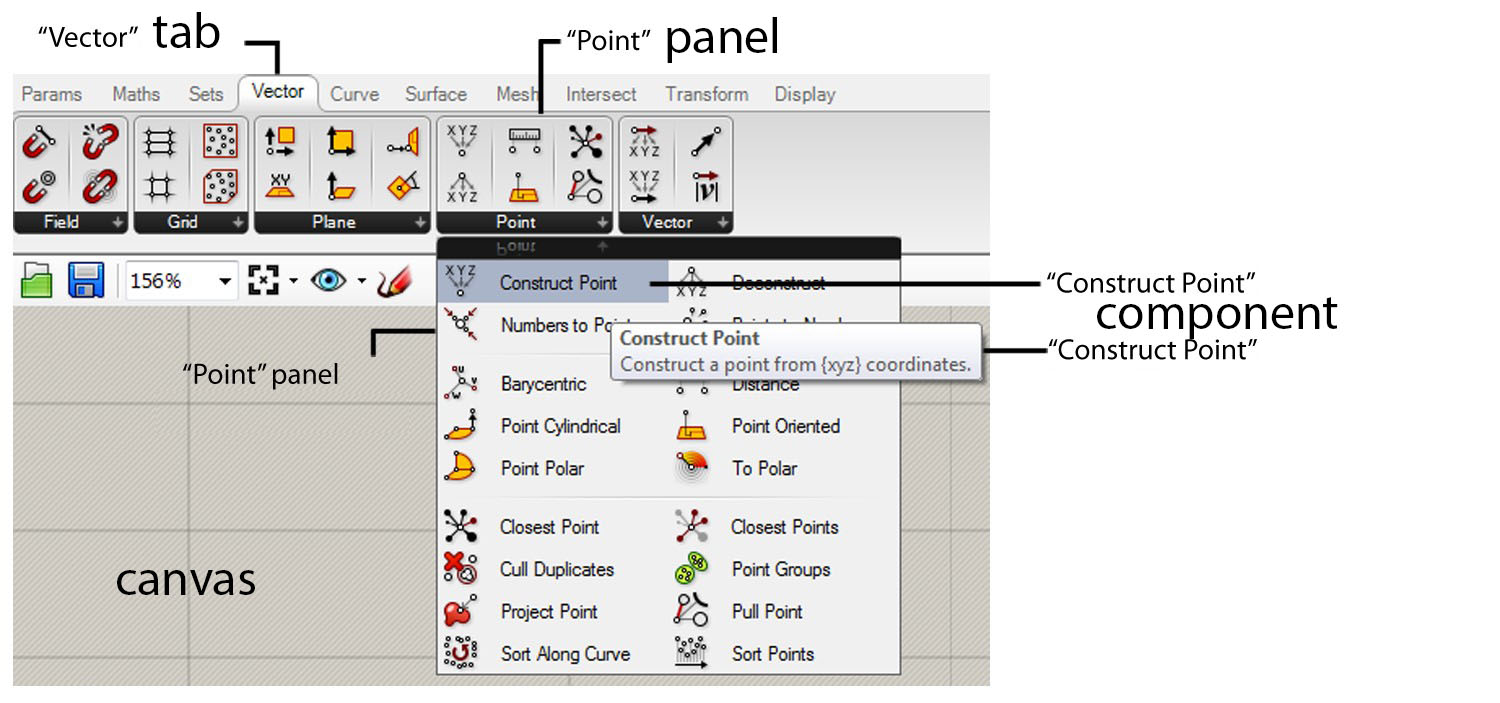
Now take a look at the tabs and panels, and take a look at the components they contain. Cute or cute colorful components are waiting for us to use. In the beginning, the subject of which component is located where and what it does may seem a bit confusing. But as you work, it will be easier to recognize and find them. However, We will be using a significant part of these components in the applications we will make throughout the series. But, we don’t necessarily have to search for a component we want to use in tabs and panels. It is possible to search by double-left-clicking on an empty area on the canvas or by typing the name of the component in the search box. That opens by pressing the Space key on the keyboard.

Today, the explanation of the Grasshopper user interface continued. More content will follow.
Cite this post
Related Posts
Data Domains in Grasshopper
March 24, 2024
In this short tutorial, I am showing the essentials of data domains in Grasshopper. A domain is a data type in Grasshopper that represents a portion of the 1d or 2d number space. This requires a starting and ending point in those spaces. In 1d, these points are two numbers. Then, the domain represents all the numbers between them. In 2d, a data domain is represented by two coordinates (u, v). This presentation illustrates this concept with the area defined…
Coding the Dodecahedron
March 7, 2024
Here is a method for coding the dodecahedron and all its irregular variants in Grasshopper as quickly as possible. I utilized the golden ratio rectangles, usually used to construct the sister polyhedron, the icosahedron. However, the magic component of the Grasshopper, the Faceted Dome rescued me again to generate the dual of it, the dodecahedron. This is a special platonic solid, which has 12 regular pentagonal faces. There are several techniques that I generally prefer to use in Grasshopper. You…
Rhino+Gh: Grasshopper for Beginners (7)
February 2, 2023
We continue with the Grasshopper for Beginners series by explaining Rhino+Gh workflow principles. What does GH add to Rhino‘s standard drawing and modeling functions? To put the question differently, what does GH do that conventional modeling programs, such as Rhino, can’t? What is the difference and relationship between Rhino+Gh? Let’s take an example to answer these questions. Our example is about parametrically describing a surface model and deriving its alternatives. First, we will try to create a surface using only…
Hello World! Grasshopper for Beginners (6)
January 17, 2023Let’s continue the Grasshopper for Beginners series. We start with the traditional “Hello World!” displayed on the Rhino screen: Placing the Components In most CAD programs, the text creation function, which is the equivalent of the Text command, is performed by a component called Text Tag (Tag) in GH. The Text Tag (Tag) component is in the Dimension panel under the Display tab. If you’re not comfortable with tabs and panels yet, you can revisit this section from the beginning….
Interface Continued: Grasshopper for Beginners (5)
December 21, 2022In this 5th episode of Grasshopper for Beginners, the interface continued by exploring the interface of Grasshopper. With the help of these two methods (tabs and search box), we can find the components. We can select them with the left click and place them on the canvas with the left click again. Now take random components and try to place them on the canvas with both methods. Therefore, components with different functions are the building blocks of GH definitions. The…