
Display Method for Vector Class
Let’s continue from the Vector class that started yesterday. Previously, I defined this class to store three numbers (coordinates), named as “components”. I defined a method named __init__ for this. Similarly, I am adding a display method to the Vector class today. Note that I am using Rhino 6 in this code, but it should also work in Rhino 5 or 7.
The code
import rhinoscriptsyntax as rs
class Vector:
	def __init__(self, point):
		self.components = point
	def display(self):
		line = rs.AddLine([0,0,0], self.components)
		rs.CurveArrows(line, 2)
v = Vector([2,2,0])
v.display()
Below is the line-by-line explanation of the method:
| Line | Explanation |
| 1-4 | Already explained before. |
| 5 | Start the definition of a new method named “display” within the Vector class. This method will not take any inputs yet. “self” is for syntax purposes, representing the object instance we are working with. |
| 6 | Here, we define a variable named “line”. This variable will hold the result of a command executed in “rs”, which is the library of commands in Rhino. From the rs module, we are firing the “AddLine” method. To get help about the methods inside the rs module: you can use this reference. As you see, the AddLine method has two inputs. The first input is the list of numbers, representing the starting point of the line. In our case, the starting point is the origin ([0,0,0]). The second input is the coordinate we hold in our vector object, which can be accessed by self.components. |
| 7 | Since the result of the above operation draws a line in Rhino viewport, it also puts the ID number of the line object in a variable we named as “line”. Now, we are using this ID number to access that line and add an arrowhead to it by utilizing another rs method “CurveArrows”. If you look at the reference of this method, it also takes two inputs: the curve object, and an index number representing the placement of the arrow. Note that, checking the reference is an important habit. Because, we cannot understand what is that “2”, otherwise. |
Testing the method
The last two lines of the above code are for testing purposes. Firstly, the 8th line creates one vector object by using the newly developed Vector class. Then, the last line calls the “display” method of the object, firing the new method we added. Finally, if everything is correct, you should be seeing the arrow in the Rhino viewport. For further study, you can test the method with several different vector objects. Note that the coordinates are stored in the object attribute, named “components”. Currently, it is only accepting the Rhino origin as the tail point. However, we are going to further develop this method in the next lesson.
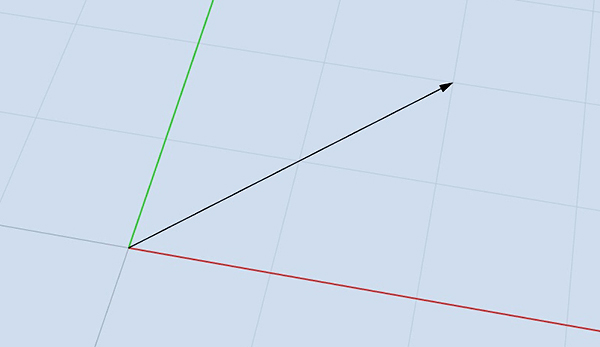
That is it for today.
Cite this post
Related Posts
Vector Projection and Angle
December 21, 2021
In this session, I will add two new methods to the Vector class. I think this will finish the basics for the vectors. In the future, we are going to need several new methods like adding multiple vectors and interpolation. But for now, I think this would be sufficient to further advance into parametric curves and surfaces. These new methods will be based on the dot product method we created in the last post. I will add the vector projection…
Vector Normalization and Dot Product
October 29, 2021
This is the continuation of the Vector class we started here, and further advanced here, here, and here. This new Rhino Python implementation is mostly educational and partially a hobby. Before this session, we have developed display, magnitude, add, multiply, reverse, and subtract methods. This time, I am adding the vector normalization and dot product methods and seeing the utilizations of the dot product. Line Explanation 1-26 Already explained in the previous posts. 27 Define a new method called “normalize”….
Vector Magnitude Method in Rhino Python
October 12, 2021Today, I am going to make only one addition to the Vector class we recently started in Rhino Python. The magnitude of a vector can be easily calculated by assuming that the axes (2 or 3 axes) of it are perpendicular to each other. This gives us an opportunity to assume a right triangle visually, and calculate the magnitude (length) of a vector by using the Pythagorean Theorem. In short, if you square and add the components of a vector,…
More Vector Operations in Rhino Python
September 1, 2021This is the continuation of my new project of re-creating the parametric curve and surface methods of Rhino via Python scripting. If you remember, I started with the building block of vector operations, here and here. Then, I defined vector addition and multiplication, before going deeper into the geometric calculations. In fact, they are using the previously defined addition and multiplication methods. New Vector Operations: Subtraction and Reversing In the future, we are going to need to reverse a vector,…
Vector Arithmetics in Rhino Python
August 20, 2021Today, I am going to advance the Vector class a bit more. Firstly, I will improve the display method I introduced recently. Then, I will add two new methods which handle the fundamental vector arithmetics in Rhino Python. Improving the Display Method In the previous attempt, I displayed vectors on the origin of the Rhino viewport. The coordinates of the tail of a vector are not stored within the object attributes. Normally, I can store two coordinates, one for the…